
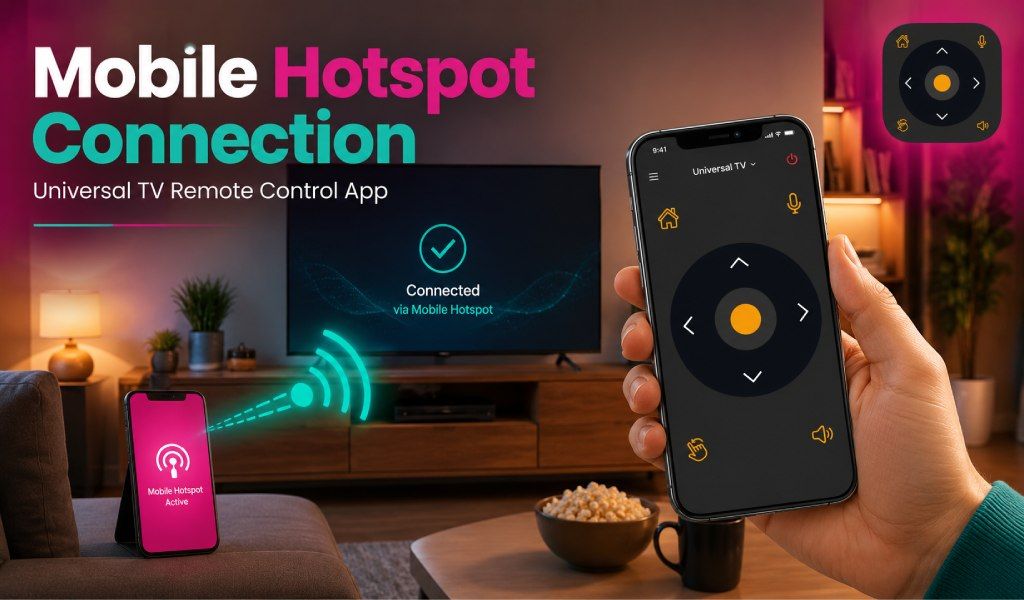
Yes, you can use a hotspot to connect the Universal TV Remote Control App, but both your phone and your Smart TV must be connected to the same network. When Wi-Fi suddenly stops working, you can still control the TV from your phone.
Instead of searching for a physical remote, simply connect to a mobile hotspot as a quick alternative network. The Universal TV Remote Control App allows users to control their TVs directly from their smartphones via infrared or Wi-Fi.
In this guide, we’ll explain whether a hotspot works, how to set it up correctly, and what to do if the connection fails.
Mobile Hotspot With Universal TV Remote Control App
If your phone supports IR blaster mode, a hotspot is completely unnecessary. The app communicates directly with the TV through infrared signals, just like a traditional remote. As long as you point your phone toward the TV, it will work even without Wi-Fi or mobile data.
If you are using Wi-Fi control, then a hotspot can work as long as both the phone running the app and the Smart TV are connected to the same hotspot network. In this situation, the hotspot acts like a small wireless router. Once both devices join that network, the app can scan for available TVs and connect to them.
However, some Smart TVs may have limitations. Certain models do not connect easily to mobile hotspots, especially if the hotspot is broadcasting on a 5GHz band or if the TV has network restrictions. Even so, many modern TVs can successfully use a hotspot for TV remote app connectivity when configured correctly.
Step-by-Step Process to Use a Hotspot to Connect the Universal TV Remote Control App
You can connect the Universal TV Remote Control App through a hotspot by making sure both your phone and TV are connected to the same hotspot network. Follow these steps to set it up correctly:
Step 1: Enable a Mobile Hotspot on a secondary phone or device
- Use another smartphone or portable hotspot device to create a wireless network.
Step 2: Connect your Smart TV to the hotspot network
- Open the TV’s network or Wi-Fi settings and select the hotspot name from the available networks.
Step 3: Connect your primary phone to the same hotspot network
- The phone running the remote app must also connect to that exact hotspot.
Step 4: Download and open the Universal TV Remote Control App
- Install the app from the Play Store or App Store if you haven’t already.
Step 5: Allow the app to scan for available TVs
- Once launched, the app will automatically search for compatible TVs connected to the same network.
Step 6: Select your TV from the list
- When your TV appears in the detected devices list, tap it to connect.
Step 7: Start controlling your TV
- After pairing, you can use the on-screen buttons, touchpad, or keyboard to control the TV.
Pro Tip: If your TV fails to connect, switch the hotspot frequency to 2.4GHz, since many TVs are more compatible with this band than with 5GHz.
Limitations of Using a Hotspot With the TV Remote App
- Using a hotspot with the Universal TV Remote Control App may not always work due to certain device limitations or network settings.
- Older televisions without Smart TV features cannot connect to wireless networks, so hotspot control will not work.
- Another limitation happens when the phone and TV are connected to different networks. The app can only discover TVs that are on the same network as the phone.
- Some TVs only support 2.4GHz networks, while others prefer 5GHz. If the hotspot uses a band your TV cannot recognize, the connection will fail.
- Data limits or hotspot throttling may also reduce connection stability, especially if the network becomes slow or overloaded.
Troubleshooting: Universal TV Remote App Not Connecting via Hotspot
If the Universal TV Remote App is not connecting via a hotspot, several simple fixes can often resolve the issue. Most connection issues are related to network settings or compatibility.
- First, check whether both the phone and TV are connected to the same hotspot network. Even a small difference in network names will prevent the app from detecting the TV.
- Second, verify that the TV successfully connects to the hotspot. If it cannot detect the hotspot network, switch the hotspot frequency from 5GHz to 2.4GHz and try again.
- Third, reduce interference by placing the hotspot device closer to the TV. Weak signals or walls between devices can cause the connection to drop.
- Fourth, ensure the app is updated to the latest version, as updates often fix compatibility issues and connection problems.
If problems continue, reinstalling the app can help resolve more complex issues.
No Hotspot? Use IR Blaster Mode Instead
If you cannot use a hotspot, the IR blaster mode provides a simple alternative for controlling your TV. Smartphones with an infrared sensor can send signals directly to the TV without requiring any internet connection.
All you need to do is open the app, select your TV brand, and point your phone toward the TV. The infrared signal will act just like a traditional remote control. This method is especially useful when traveling, when Wi-Fi is unavailable, or when setting up a hotspot becomes complicated.
Final Thoughts
You can use a hotspot to connect the Universal TV Remote Control App, as long as both your phone and your Smart TV are connected to the same hotspot network. This setup allows the app to detect and control the TV via Wi-Fi. If your phone supports an IR blaster, you don’t even need a network connection because the phone can send signals directly to the TV. Try both connection methods to see which one works best for your setup.
To get started, download the app from the Play Store or App Store.
Frequently Asked Questions (FAQs)
Q1. Does using a mobile hotspot consume a lot of mobile data when controlling the TV?
A: No, controlling your TV through a hotspot typically uses very little mobile data. The Universal TV Remote Control App mainly sends small control commands over the network rather than streaming content. As a result, data usage remains minimal during normal remote operations.
Q2. Can multiple phones control the same TV through a hotspot?
A: Yes, multiple phones can control the same Smart TV as long as they are connected to the same hotspot network. Each device can install the Universal TV Remote Control App and connect to the TV independently. However, simultaneous control may occasionally cause command delays.
Q3. Is internet access required for the hotspot connection to work?
A: No, an active internet connection is not always necessary for the hotspot method. The hotspot primarily serves as a local wireless network that enables the phone and TV to communicate. Even without mobile data, the app can still detect and control the TV if both devices are connected.
Q4. Can tablets use the Universal TV Remote Control App with a hotspot?
A: Yes, tablets can also use the app as long as they support Wi-Fi connectivity and are connected to the same hotspot network as the TV. The process is the same as using a smartphone. Once connected, the tablet can function as a full remote control.
Q5. Why does the app take time to detect the TV on a hotspot network?
A: Sometimes the app may take a few seconds to scan and detect compatible devices on the network. This can happen due to network latency or slow device discovery. Waiting a moment or refreshing the device scan usually resolves the issue.