
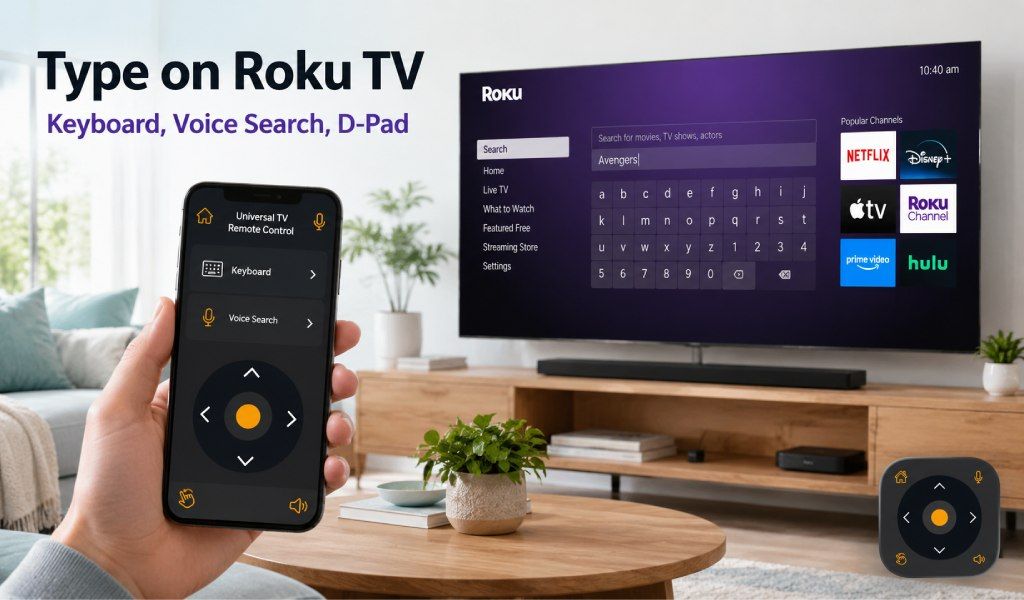
Typing on a Roku TV is one of those small tasks that can become frustrating. You open a search bar or login screen and start navigating an on-screen alphabet using arrow keys, only to miss letters, overshoot, and repeat the process.
Even something as simple as entering a show title, email address, or password can be slow and tedious. Typing a 10-character Netflix password can easily take two to three minutes this way.
There’s a better way. The Universal TV Remote Control app turns your smartphone into a powerful input device for your Roku TV, featuring a full keyboard, voice search, and a D-Pad. No extra hardware or complicated setup required. Here’s how it works and how to use each feature effectively.
Why Typing on a Roku TV Remote Is Such a Problem?
The Roku remote is built for simplicity, not typing. It doesn’t include alphabet keys, so everything relies on directional navigation. Each letter must be selected manually using the arrow keys, which slows even the shortest inputs.
This becomes especially frustrating when entering long email addresses or complex streaming passwords. What should take seconds stretches into minutes. On top of that, Roku TVs typically don’t support external USB or Bluetooth keyboards, leaving users stuck with the default method.
It’s a long-standing complaint among Roku users. The good news is that the Universal TV Remote Control app solves all three major issues: typing, searching, and navigation from your phone.
How to Get Started: Connecting the App to Your Roku TV
Setting up the app is quick and straightforward.
First, download the Universal TV Remote Control app from the Google Play Store or Apple App Store. The app has over 130 million downloads, is used in more than 100 countries, and supports 700+ TV brands, including all Roku-powered TVs.
Once installed, make sure your phone and Roku TV are connected to the same Wi-Fi network. Open the app, and it will automatically scan for nearby devices. Your Roku TV should appear within seconds. Tap it to connect.
There’s no need for login credentials or pairing codes. As soon as you connect, your phone becomes a fully functional remote.
Quick Tip: If your TV doesn’t appear, go to Settings → System → Advanced System Settings → Control by Mobile Apps on your Roku TV and enable “Network Access.” Then reconnect.
Using the In-App Keyboard to Type on Your Roku TV
The in-app keyboard is the biggest upgrade over the physical remote. Instead of navigating letter by letter, you can type directly using your phone’s full QWERTY keyboard.
After connecting the app, open any text field on your Roku TV. This could be a search bar, login screen, or input box inside apps like Netflix, YouTube, or Prime Video. Tap the keyboard icon in the app, and your phone keyboard will appear instantly.
Start typing, and each character shows up on your TV screen in real time. There’s no lag, no back-and-forth navigation, just fast, accurate input.
This feature makes a noticeable difference in everyday tasks. Entering long email addresses becomes effortless, and complex passwords no longer require careful step-by-step selection. Searching for specific shows, actors, or genres is also much quicker, especially when browsing across multiple apps.
It’s particularly useful when setting up a new TV. For example, logging into Netflix with a long email address and password might take 4 minutes using the arrow keys. With the app’s keyboard, it takes under 10 seconds.
The result is simple: less frustration, faster input, and a smoother overall experience.
Using Voice Search on Your Roku TV Through the App
Voice search adds another layer of convenience. Instead of typing, you can simply speak your query into your phone.
Open the app, connect to your Roku TV, and tap the microphone icon. Then say what you’re looking for, whether it’s a show title, actor name, or category like “action movies.” The app sends your voice input to the TV, and results appear within seconds.
This feature is especially helpful when you’re unsure about spelling or don’t remember the exact title. Just say what you know, and the TV does the rest. It’s also ideal for hands-free use when you’re cooking, eating, or relaxing across the room.
Voice search removes friction from content discovery. Instead of navigating menus or typing letter by letter, you jump straight to results with a simple command.
Using the D-Pad to Navigate Your Roku TV
The D-Pad feature gives you smooth and responsive control directly from your phone. Instead of relying on a physical remote, you can use on-screen directional buttons for precise navigation.
After connecting, use the D-Pad controls in the app to navigate menus, select options, and browse content. The layout mirrors a traditional remote but is more accessible and responsive on your phone screen. Tap the center button to confirm selections, just like pressing OK on a physical remote.
This method feels familiar but more convenient, especially when browsing content, scrolling through menus, or navigating search results.
The app ensures that navigation remains simple while giving you the flexibility of using your phone instead of a physical remote. It combines comfort with control, making everyday use much easier.
Using All Three Together
You sit down to watch TV and open the app on your phone. Within seconds, it connects to your Roku TV.
You navigate the home screen using the D-Pad and open Netflix. When prompted for your password, you tap the keyboard icon and type it instantly. Then, to find a show, you tap the microphone and say the title.
Everything happens quickly and smoothly, no delays, no repeated clicks, and no frustration.
Conclusion
The Universal TV Remote Control app gives Roku users something the physical remote simply can’t: speed and flexibility. With a full keyboard, built-in voice search, and a responsive D-Pad, everyday tasks become faster and easier.
Each feature targets a specific pain point, whether it’s typing passwords, searching for content, or navigating menus. Setup takes less than a minute, and the difference is immediate.
You can download it here:
Android: https://play.google.com/store/apps/details?id=codematics.universal.tv.remote.control
iOS: https://apps.apple.com/us/app/universal-tv-remote-control/id1492122256
FAQs
1. Can I use my phone keyboard to type on the Roku TV?
Yes. Install the Universal TV Remote Control app, connect it to your Roku TV over Wi-Fi, and tap the keyboard icon. Your phone’s keyboard opens, and whatever you type appears instantly on the TV screen.
2. How do I search on Roku TV using voice without the physical remote?
Open the app, connect it to your Roku TV, and tap the microphone icon. Speak your query clearly, and the results will appear on your TV within seconds.
3. What is D-Pad mode in a Roku TV remote app?
D-Pad mode provides directional controls similar to those on a traditional remote. You use on-screen arrow buttons to navigate menus and tap the center button to select items. It’s simple, familiar, and effective.
4. Does the Universal TV Remote Control app work on all Roku TV brands?
Yes. It supports all major Roku-powered TVs, including TCL, Hisense, Sharp, and Philips, as long as both the TV and the device are connected to the same Wi-Fi network.
5. Why is my phone keyboard not showing up when typing on the Roku TV?
This usually happens if the connection drops or mobile control is disabled. Enable “Network Access” in Roku settings under mobile app control, reconnect the app, and try again.