
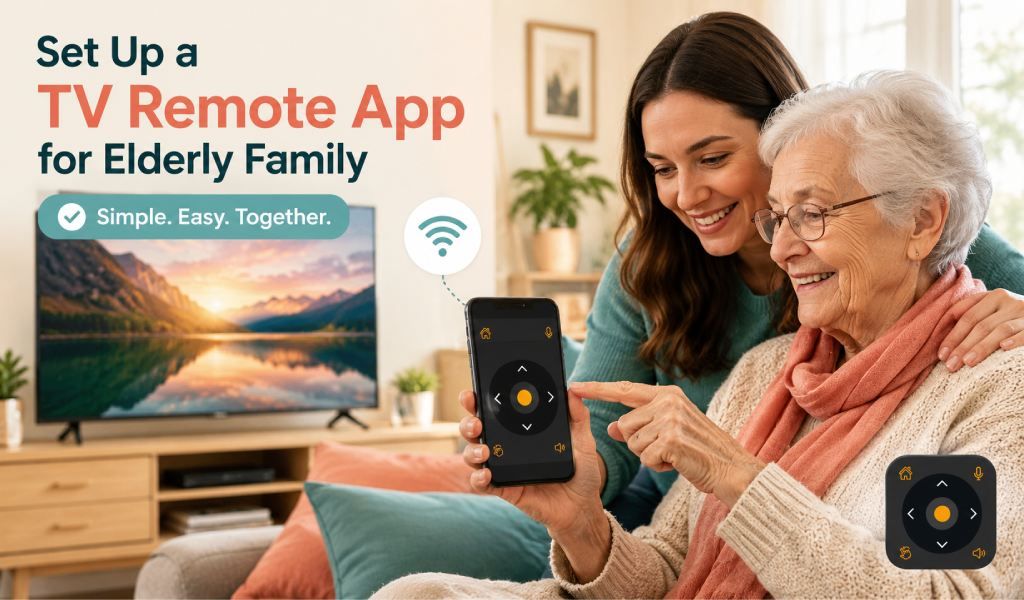
You get a call from your mum or dad. The TV remote is gone again, and now the TV is stuck on the wrong channel. It is frustrating for them and inconvenient for you, especially if you live far away. The good news is you do not need to rush over or order a replacement. A universal TV remote app can turn your phone into a fully working remote in minutes. This guide walks you through the setup step by step in simple language that anyone can follow.
Why Elderly Users Lose Their Remote More Often Than You Think?
TV remotes are small and easy to misplace. They slip behind cushions, get left on tables, or stop working due to battery issues. For elderly users, this becomes a bigger problem because replacing a remote feels complicated or unnecessary. Many do not realize their phone can do the same job. In fact, this is one of the most common reasons families look for remote apps. One user even shared that the app “saved their life” after losing their remote, which shows how valuable this simple solution can be.
What You Need Before Getting Started
Before setting things up, make sure you have:
- A smartphone, either Android or iPhone
- The TV and phone are connected to the same WiFi network
- The Universal TV Remote Control app installed from the Play Store or App Store
If the TV is not a Smart TV, the phone must have an IR blaster. This is a small sensor in some phones that sends signals like a traditional remote.
Step-by-Step Setup Guide (Written for Non-Tech Users)
Step 1 — Download the App: Open the Play Store or App Store. Search for “Universal TV Remote Control” and tap Install.
Step 2 — Open the App and Allow Permissions: Open the app after installing. If it asks for permission to access WiFi or nearby devices, tap Allow. This helps the app find the TV.
Step 3 — Both Devices Are on the Same WiFi: Verify that the phone and TV are connected to the same home WiFi network. If they are on different networks, the app will not work.
Step 4 — Select Your TV Brand: You will see a list of TV brands. Tap the correct one, such as Samsung, LG, Sony, or Hisense. The app supports hundreds of brands.
Step 5 — Pair and Start Controlling: The app will search for the TV. When it appears, tap it to connect. Some TVs may display a message requesting confirmation. Tap Allow or Yes on the TV screen.
Step 6 — Test the Basic Buttons: Try the volume, channel, and power buttons. If they work, the setup is complete.
Tips to Make It Easier for Elderly Users
A few small adjustments can make a big difference:
- Increase the phone’s font size so buttons are easier to read
- Keep the app open on the remote screen so they do not need to search for it
- Add the app shortcut to the home screen for quick access
- Show them only the main buttons they need, such as volume and channel
- Write a simple note: unlock the phone and tap the remote app
- Make sure the WiFi stays connected on both the TV and phone
These steps help reduce confusion and make the experience more comfortable.
What if the App Cannot Find the TV
If the app does not detect the TV, try these quick fixes:
Different WiFi networks: This is the most common issue. Make sure both the TV and phone are connected to the same WiFi name.
TV is turned off: The app cannot find the TV if it is off. Turn it on using the button on the TV itself.
TV brand not listed: Use the search option or browse the full list. Most brands are supported, including older models.
If problems continue, you can check your guide on the app not working for more detailed fixes.
Why the Universal TV Remote Control App Works Well for This Situation
This app is especially useful for elderly users and their families:
- More than 130 million downloads
- 700 plus TV brands are compatible
- Users in more than 100 countries
- Clean and simple interface that is easy to understand
- Works with both Smart TVs using WiFi and older TVs using IR
- No account required, just install and use
- Trusted by millions of users worldwide
- Free core features like channel change and volume control
- Quick support when help is needed
Another advantage is that you can guide your parents over the phone. The setup is simple enough to explain step by step without being there in person.
When to Consider a Physical Backup Remote Too
For some elderly users who are not comfortable using smartphones, having a physical backup remote is still a good idea. However, a remote app on their phone ensures they always have a working option. Even if the physical remote is lost again, the phone stays with them. This makes the app a reliable everyday solution.
Conclusion
Losing a TV remote no longer has to be stressful. A universal TV remote app allows elderly users to easily control their TV with their phone. There is no need to buy a replacement or wait for delivery. The setup takes only a few minutes and works with most TV brands. Once installed, it is always available when needed.
Download Universal TV Remote Control free on Android and iOS and make TV access simple again.
FAQs
Q1. Can an elderly person use a TV remote app without being tech-savvy?
A: Yes. The app is designed with a simple layout. Once set up, it works just like a regular remote.
Q2. What happens if the phone does not have an IR blaster?
A: If the TV is a Smart TV connected to WiFi, no IR is needed. IR is only required for older TVs.
Q3. Does the app work if the internet is down?
A: Yes. It works through the home WiFi network, so the internet is not required if the router is active.
Q4. Can I set it up without being there physically?
A: Yes. You can guide your parent over a phone call since the steps are simple.
Q5. Is the app free for basic use?
A: Yes. Core features like volume, channels, and navigation are free to use.