
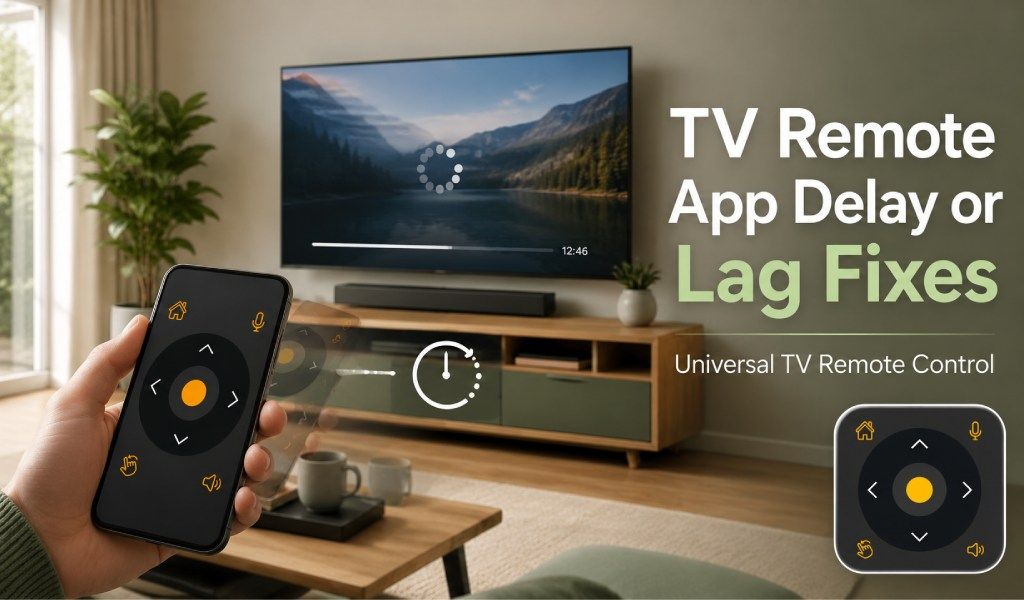
TV uzaktan kumanda uygulamasındaki gecikme genellikle zayıf Wi-Fi, ağ uyumsuzluğu, arka planda çalışan uygulamalar veya güncel olmayan yazılımlar nedeniyle oluşur. İyi haber şu ki, herhangi bir teknik bilgiye gerek kalmadan bunu birkaç dakika içinde düzeltebilirsiniz.
Uzaktan kumanda uygulamanız yavaş çalışıyorsa, yanıt vermesi zaman alıyorsa veya komutları atlıyorsa yalnız değilsiniz. Birçok kullanıcı, TV'lerini telefonla kontrol ederken bu sorunla karşılaşıyor. Bu rehberde, hızı artırmak ve uzaktan kumanda uygulamanızın yeniden sorunsuz çalışmasını sağlamak için 7 pratik çözüm bulacaksınız.
TV Uzaktan Kumanda Uygulamanız Neden Yavaş Çalışıyor veya Takılıyor
TV uzaktan kumanda uygulamaları genellikle bağlantı sorunları, cihaz performans sorunları veya hatalı kurulum nedeniyle yavaşlar.
Zayıf WiFi en yaygın nedendir. Telefonunuzun veya TV'nizin sinyali zayıfsa, komutların TV'ye ulaşması daha uzun sürer. Bir diğer yaygın sorun ise her iki cihazın aynı ağa bağlı olmamasıdır.
Telefonunuzda arka planda çalışan uygulamalar da bellek ve işlem gücü kullanarak işleri yavaşlatabilir. Bazı durumlarda, güncel olmayan uygulama sürümleri veya TV yazılımı gecikmelere ve hatalara neden olur.
Akıllı olmayan bir TV kullanıyorsanız, IR sensör sınırlamaları da yanıt hızını etkileyebilir. Aynı yönlendiriciye bağlı birden fazla cihazdan kaynaklanan ağ yoğunluğu performansı daha da geciktirebilir.
Bu nedenleri anlamak, sorunu hızlıca çözmeyi kolaylaştırır.
Akıllı TV İşletim Sistemi Açıklandı - Android TV ve Google TV ve Tizen ve webOS Karşılaştırması
TV Uzaktan Kumanda Uygulamasındaki Gecikmeyi Düzeltmenin 7 Yolu
Bu çözümler, yanıt süresini iyileştirmenize ve gecikme olmadan sorunsuz kontrol sağlamanıza yardımcı olur.
1. WiFi Bağlantı Hızınızı ve Kararlılığınızı Kontrol Edin
Yavaş veya kararsız WiFi, uzaktan kumanda uygulamalarındaki gecikmenin başlıca nedenidir.
İnternet bağlantınızın kararlı ve güçlü olduğundan emin olun. Telefonunuzu yönlendiriciye yakın kullanmayı deneyin ve sinyali zayıflatan duvarlardan veya diğer engellerden kaçının. Yönlendiriciniz çift bant destekliyorsa, hem TV'nizi hem de telefonunuzu aynı banda bağlayın.
Yönlendiricinizi yeniden başlatmak genellikle geçici ağ sorunlarını çözer ve hızı artırır.
2. Telefonunuzun ve TV'nizin Aynı Ağda Olduğundan Emin Olun
Uzaktan kumanda uygulamalarının düzgün çalışması için her iki cihazın da aynı WiFi ağında olması gerekir.
Telefonunuz farklı bir ağa veya mobil veriye bağlıysa, uygulama gecikebilir ya da yanıt vermeyebilir. Her iki cihazdaki WiFi adını kontrol edin ve eşleştiğinden emin olun.
Gerekirse bağlantıyı yenilemek için her iki cihazı da yeniden bağlayın.
3. Telefonunuzdaki Arka Plan Uygulamalarını Kapatın
Arka planda çalışan çok fazla uygulama telefonunuzu yavaşlatabilir ve uzaktan kumanda performansını etkileyebilir.
Kullanılmayan uygulamaları kapatın ve bellek boşaltın. Bu, telefonunuzun komutları daha hızlı işlemesine yardımcı olur ve gecikmeyi azaltır.
Bu adım, özellikle orta segment veya eski akıllı telefonlar için faydalıdır.
4. TV Uzaktan Kumanda Uygulamasını ve TV Yazılımını Güncelleyin
Güncel olmayan uygulamalar ve TV sistemleri genellikle hatalara ve yavaş yanıta neden olur.
Uygulama mağazasını açın ve güncellemeleri kontrol edin. Ayrıca, TV ayarlarınızdan varsa mevcut sistem güncellemelerini kontrol edin. Her ikisini de güncel tutmak, daha iyi uyumluluk ve daha sorunsuz performans sağlar.
5. TV'nizi ve Akıllı Telefonunuzu Yeniden Başlatın
Cihazları yeniden başlatmak, geçici arızaları temizler ve bağlantıları yeniler.
TV'nizi ve telefonunuzu yaklaşık bir dakika kapatın, ardından tekrar açın. Bu basit adım, gecikmeyle ilgili birçok sorunu anında çözebilir.
6. Ağ Yükünü Azaltın
Çok fazla bağlı cihaz ağınızı yavaşlatabilir ve gecikmeyi artırabilir.
Aynı WiFi üzerinde birden fazla kullanıcı yayın izliyor, indirme yapıyor veya oyun oynuyorsa, uzaktan kumanda uygulamanız yavaş yanıt verebilir. Performansı artırmak için kullanılmayan cihazların bağlantısını kesin veya yoğun kaynak kullanan etkinlikleri duraklatın.
7. WiFi Kararsızsa IR Modunu Kullanın
IR modu internet bağlantısı olmadan çalışır ve ağ kaynaklı gecikmeleri ortadan kaldırır.
Telefonunuz IR destekliyorsa, WiFi olmadan TV'nizi doğrudan kontrol edebilirsiniz. Bu, eski TV'ler veya internetin zayıf olduğu durumlar için faydalıdır.
IR kullanmak, kararsız WiFi bağlantılarına göre daha hızlı ve daha doğrudan bir yanıt sağlar.
TV Uzaktan Kumanda Uygulaması Performansını Artırmak İçin Profesyonel İpuçları
Kurulumunuzu optimize tutmak, tutarlı ve hızlı performans sağlar.
Telefonunuzu her zaman TV'ye veya yönlendiriciye makul bir mesafede tutun. Uygulama performansını sınırlayabileceğinden pil tasarrufu modunu kullanmaktan kaçının. Düzgün bağlantı için uygulamanın gerekli tüm izinlere sahip olduğundan emin olun.
Uygulama önbelleğini zaman zaman temizlemek de işleri yavaşlatabilecek geçici verilerin kaldırılmasına yardımcı olur.
Neden Universal TV Remote Control Uygulamamızı Seçmelisiniz
İyi optimize edilmiş bir uzaktan kumanda uygulaması gecikmeyi azaltır ve genel kontrol deneyimini iyileştirir.
Universal TV Remote Control uygulamamız, çeşitli TV markalarında hızlı ve kararlı performans sunacak şekilde tasarlanmıştır. 700'den fazla TV markasını destekler ve dünya genelinde 130 milyondan fazla kullanıcı tarafından güveniliyor.
Uygulama 100'den fazla ülkede çalışır ve hem WiFi ve IR modlarını destekler. Duyarlı bir D Pad, hızlı yazım için yerleşik bir klavye ve daha kolay gezinme için sesli kontrol içerir.
Arayüz basittir, bu da herkesin kafası karışmadan kurulum yapmasını ve kullanmasını kolaylaştırır. Doğru kurulumla, uygulama fiziksel bir kumandaya benzer şekilde sorunsuz ve güvenilir kontrol sağlar.
Gecikme Daha Büyük Bir Sorunu İşaret Ettiğinde
Sürekli gecikme, temel çözümlerin ötesinde daha derin bir sorunu işaret edebilir.
TV'niz çok eskiyse veya telefonunuzun performansı sınırlıysa, yine de gecikmelerle karşılaşabilirsiniz. Yönlendirici sorunları veya desteklenmeyen TV modelleri de sürekli sorunlara neden olabilir.
Bu gibi durumlarda, bağlantı modunu değiştirmek veya cihazınızı yükseltmek en iyi çözüm olabilir.
Son Düşünceler
TV uzaktan kumanda uygulamasındaki gecikme genellikle hızlıca çözülebilecek basit sorunlardan kaynaklanır.
Çoğu gecikme, Wi-Fi sorunlarından, cihaz yükünden veya güncel olmayan yazılımlardan kaynaklanır. Bu rehberdeki çözümleri uygulayarak, birkaç dakika içinde hızlı ve sorunsuz kontrolü geri kazanabilirsiniz.
Doğru şekilde yapılandırılmış bir uzaktan kumanda uygulaması anında yanıt vermeli ve TV'nizi kontrol etmeyi kolay ve rahat hale getirmelidir.
Universal TV Remote Control Uygulaması ile Daha Hızlı Kontrol Elde Edin, uygulamayı indirin bugün ve telefonunuzu hızlı ve duyarlı bir TV kumandasına dönüştürün.
Sık Sorulan Sorular
Q. TV uzaktan kumanda uygulamam neden yavaş yanıt veriyor?
A: Bu genellikle zayıf WiFi, arka plan uygulamaları veya güncel olmayan yazılımlar nedeniyledir.
Q. TV uzaktan kumanda uygulamamdaki gecikmeyi nasıl düzeltirim?
A: Her iki cihazı da aynı WiFi'ye bağlayın, yeniden başlatın ve uygulamayı güncelleyin.
Q. TV uzaktan kumanda uygulamasını WiFi olmadan kullanabilir miyim?
A: Evet, telefonunuz destekliyorsa IR modunu kullanabilirsiniz.
Q. WiFi hızı uzaktan kumanda uygulamasının performansını etkiler mi?
A: Evet, yavaş veya kararsız WiFi gecikmeyi artırır ve yanıt hızını azaltır.
Q. Uzaktan kumanda uygulamam neden sık sık bağlantıyı kesiyor?
A: Ağ kararsızlığı veya çok fazla bağlı cihaz, sık bağlantı kesintilerine neden olabilir.