
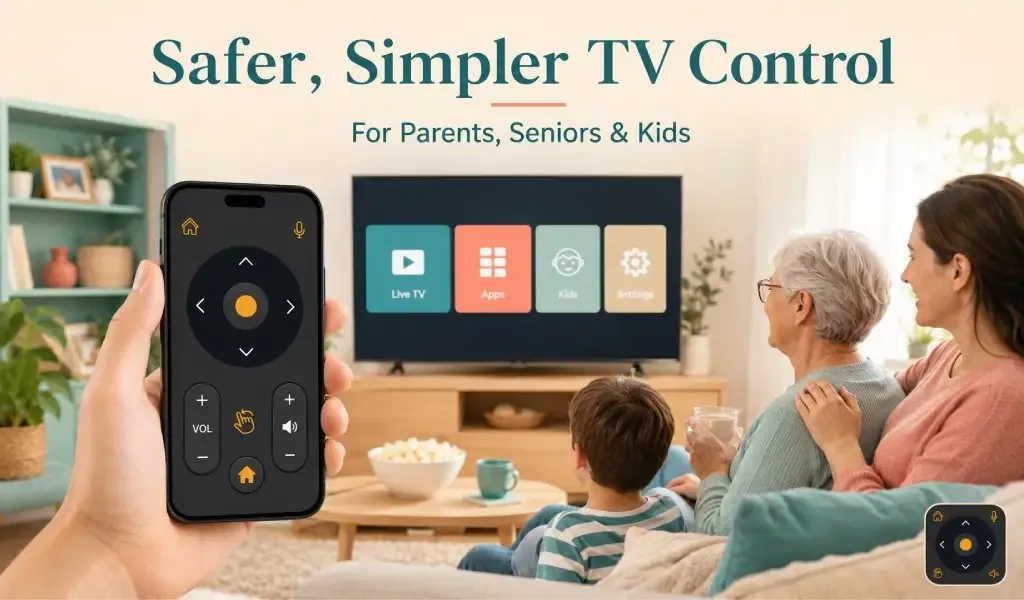
Una app de control remoto de TV puede facilitar el entretenimiento diario para cada miembro de la familia cuando está configurada correctamente. En lugar de buscar un control remoto extraviado o luchar con botones diminutos, puedes crear una experiencia simple y segura que funciona para padres, unadultos mayores y niños por igual. Los ajustes adecuados reducen la confusión, evitan cambios accidentales y hacen que controlar la TV sea mucho más cómodo.
Ya sea que tu familia vea películas juntos, siga programas educativos o disfrute de los deportes del fin de semana, elegir los ajustes adecuados de la app de control remoto ayuda a todos a usar la televisión con confianza.
¿Por qué importan los ajustes de la app de control remoto de TV para las familias?
Los ajustes de la app de control remoto de TV importan porque mejoran la seguridad, simplifican la navegación y hacen que la televisión sea más fácil de usar para personas de diferentes edades.
Cada familia tiene necesidades diferentes. Un niño pequeño puede cambiar accidentalmente ajustes importantes, mientras que un adulto mayor puede tener dificultades para ver iconos pequeños. Los padres suelen querer acceso rápido a apps de streaming sin dar a los niños control sin restricciones.
Una app de control remoto de TV correctamente configurada puede resolver muchos de estos problemas cotidianos al ofrecer controles simples, botones más grandes, comandos de voz y mejor organización.
Algunas de las mayores ventajas incluyen:
- Navegación más fácil
- Menos pulsaciones accidentales de botones
- Acceso más rápido a canales y apps favoritos
- Mejor accesibilidad para personas mayores
- Experiencia de visualización más cómoda para niños
¿Qué funciones de la app de control remoto de TV son más útiles para las familias?
Las funciones más útiles de una app de control remoto de TV son el control por voz, la navegación simple, los botones grandes y la compatibilidad con diferentes marcas de TV.
No todas las apps de control remoto ofrecen la misma experiencia. Elegir una con funciones fiables ahorra tiempo y reduce la frustración de todos en casa.
Una de las opciones más fiables es Universal TV Remote Control. Ha ganado la confianza de millones de usuarios al ofrecer una interfaz simple que funciona en una amplia gama de televisores.
Algunas de sus funciones destacadas incluyen:
- 130 Million Plus Downloads
- Compatible with more than 700 TV Brands
- Used in more than 100 Countries
- Keyboard and D Pad Navigation
- Voice Control Features
- User Friendly Interface
- Supports both WiFi and IR Connectivity
Estas funciones la hacen adecuada para hogares donde diferentes miembros de la familia tienen distintos niveles de comodidad con la tecnología.
Duplicación de pantalla vs app de control remoto: ¿cuál es la diferencia y cuál necesitas realmente?
¿Cuáles son los mejores ajustes de la app de control remoto de TV para padres?
Los padres deben activar una navegación simple, organizar las apps favoritas y limitar el acceso innecesario a los ajustes de la TV.
Los padres suelen querer acceso rápido al entretenimiento sin permitir que los niños hagan cambios no deseados.
Los siguientes ajustes pueden ayudar.
Añadir apps de streaming favoritas
Coloca las apps de uso frecuente en la parte superior de la pantalla de inicio. Esto reduce el desplazamiento y facilita que todos encuentren el servicio adecuado.
Activar control por voz
Los comandos de voz ahorran tiempo al buscar películas, dibujos animados o contenido educativo. En lugar de escribir títulos largos, simplemente di el nombre.
Usar navegación con teclado
Escribir contraseñas o buscar contenido es mucho más rápido con el teclado integrado disponible en las apps de control remoto compatibles.
Mantener solo accesos directos esenciales
Demasiados accesos directos pueden confundir a los miembros de la familia. Mantener solo los controles más importantes crea una experiencia más limpia.
Conectar a través de WiFi cuando esté disponible
Una conexión WiFi suele ofrecer tiempos de respuesta más rápidos y permite funciones avanzadas de smart TV que los controles remotos infrarrojos tradicionales no pueden ofrecer.
¿Qué ajustes de la app de control remoto de TV ayudan más a las personas mayores?
Las personas mayores se benefician sobre todo de controles más grandes, comandos de voz y un diseño simplificado.
Muchos adultos mayores solo necesitan unas pocas funciones básicas, como cambiar de canal, unajustar el volumen y abrir un servicio de streaming.
Estos ajustes hacen que el uso diario sea mucho más fácil.
Aumentar el tamaño de los botones
Elige una app que use botones grandes y claramente etiquetados siempre que sea posible. Controles más grandes reducen errores y mejoran la confianza.
Reducir el desorden visual
Evita diseños llenos de iconos innecesarios. Una pantalla limpia es más fácil de entender.
Activar búsqueda por voz
La búsqueda por voz elimina la necesidad de escribir y ayuda a las personas mayores a encontrar rápidamente canales o películas.
Guardar canales de uso frecuente
Mantener los canales favoritos fácilmente disponibles elimina búsquedas repetidas.
Enseñar navegación simple
Dedica unos minutos a explicar los controles básicos. Una vez que las personas mayores se familiarizan con el diseño, suelen encontrar las apps de control remoto más fáciles que los controles tradicionales.
¿Qué ajustes de la app de control remoto de TV son mejores para niños?
Los niños se benefician de acceso limitado, controles simples y navegación fácil hacia contenido aprobado.
Los niños pueden cambiar accidentalmente ajustes o abrir apps que los padres no quieren que usen.
Estos ajustes ayudan a evitar problemas comunes.
Mantener visibles solo apps aptas para niños
Organiza la pantalla para que las apps educativas y de entretenimiento familiar sean las más fáciles de acceder.
Desactivar ajustes avanzados
Evita dar a los niños acceso a ajustes de la televisión que podrían cambiar la calidad de imagen, las conexiones de red o la configuración del dispositivo.
Crear una pantalla de inicio simple
Cuantas menos opciones tengan los niños, más fácil les resultará encontrar lo que quieren sin ayuda.
Usar comandos de voz
Los niños pequeños que no saben escribir a menudo pueden usar comandos de voz más fácilmente que búsquedas con teclado.
Supervisar nuevas instalaciones
Los padres deben aprobar cualquier nuevo servicio de streaming o aplicación antes de que esté disponible.
¿Cómo puedes hacer una app de control remoto de TV más fácil para todos?
Puedes hacer una app de control remoto de TV más fácil para todos manteniendo la interfaz simple y organizando los controles según el uso diario.
Las familias suelen compartir una sola televisión, por lo que la comodidad debe ser la prioridad.
Considera estos hábitos prácticos.
- Mantén el teléfono cargado antes de la película en familia.
- Conecta la app a la televisión solo una vez y evita configuraciones repetidas.
- Actualiza la app regularmente para mejor compatibilidad.
- Elimina dispositivos que ya no se usan.
- Etiqueta las diferentes televisiones si tu casa tiene más de una.
- Enseña los controles básicos a cada miembro de la familia.
Pequeños ajustes como estos hacen que el uso diario de la televisión sea más fluido.
¿Puede una sola app de control remoto de TV funcionar en diferentes TV Brands?
Sí, muchas apps modernas de control remoto de TV pueden controlar televisores de diferentes fabricantes.
Esto es especialmente útil en hogares donde dormitorios, salones y habitaciones de invitados tienen televisores de diferentes marcas.
En lugar de instalar apps separadas para cada televisión, usar una app de control remoto universal fiable ahorra espacio de almacenamiento y crea una experiencia consistente para cada miembro de la familia.
La compatibilidad también se vuelve importante al actualizar a una nueva televisión, porque a menudo puedes seguir usando la misma app de control remoto sin aprender una interfaz completamente diferente.
¿Qué errores comunes deben evitar las familias?
Las familias deben evitar diseños complicados, permisos innecesarios y versiones obsoletas de la app.
Muchos problemas de apps de control remoto ocurren por simples errores de configuración.
Evita estos problemas comunes.
- Llenar la pantalla de inicio con demasiados accesos directos.
- Ignorar las actualizaciones de la app.
- Olvidar conectar ambos dispositivos a la misma red WiFi cuando sea necesario.
- Dar a los niños acceso sin restricciones a los ajustes.
- Usar apps de control remoto poco fiables con compatibilidad limitada.
Unos minutos organizando correctamente la app pueden prevenir muchas frustraciones cotidianas.
¿Smart TV conectada pero el volumen/encendido no funciona? Guía de solución 2026
Reflexiones finales
La mejor app de control remoto de TV no es simplemente la que tiene más funciones. Es la que hace que la televisión sea más fácil para todos en casa. Los padres necesitan comodidad, las personas mayores accesibilidad y los niños simplicidad y seguridad.
Elegir una app con amplia compatibilidad, control por voz, soporte de teclado y una interfaz fácil ayuda a crear una mejor experiencia de visualización para toda la familia.
Para hogares que buscan una solución fiable, Universal TV Remote Control destaca con 130 Million Plus Downloads, compatibilidad con más de 700 TV Brands, usuarios en más de 100 países, Voice Control, Keyboard and D Pad Navigation, una User Friendly Interface, y soporte para WiFi and IR Connectivity. Está diseñada para hacer que controlar tu televisión sea simple, cómodo y fiable para cada miembro de la familia.
Preguntas frecuentes
¿Puedo usar una app de control remoto de TV en varias televisiones en mi casa?
Sí. La mayoría de las apps de control remoto de calidad permiten conectarse a varias televisiones. Nombrar cada TV según su ubicación, como Salón o Dormitorio, facilita mucho cambiar entre dispositivos.
¿Es una app de control remoto de TV más fácil para personas mayores que un control físico?
En muchos casos, sí. Una app de control remoto bien diseñada con botones grandes, búsqueda por voz y un diseño simple puede ser más fácil de usar que un control tradicional con docenas de botones pequeños.
¿Funcionan las apps de control remoto de TV sin internet?
Algunas sí. Las apps que admiten conectividad infrarroja pueden controlar televisores compatibles sin WiFi, mientras que las funciones de smart TV suelen requerir que el teléfono y la televisión estén conectados a la misma red inalámbrica.
¿Cómo puedo evitar que los niños cambien ajustes importantes de la TV?
Usa un diseño simplificado de la app de control remoto, evita dar a los niños acceso a ajustes avanzados y mantén solo las apps de entretenimiento aprobadas fácilmente accesibles.
¿Qué debo hacer si mi app de control remoto de TV deja de responder de repente?
Primero, comprueba que tu teléfono y tu televisión estén conectados correctamente. Reinicia ambos dispositivos, vuelve a abrir la app y confirma que la televisión correcta está seleccionada. Actualizar la app también puede resolver muchos problemas de conexión.