
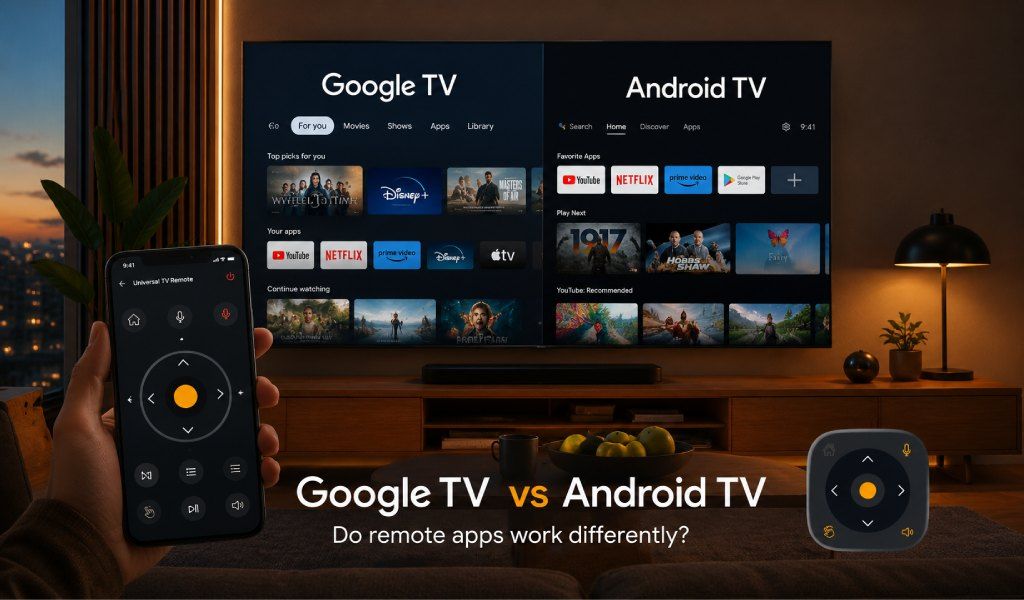
Google TV and Android TV share the same core operating system, but when it comes to remote control apps, the experience is noticeably different, and knowing why can save you a frustrating hour of troubleshooting. Many users upgrade to a newer TV, see the same Google branding, and expect everything to work the same.
Then the remote app refuses to connect the way it used to. The confusion is real, but the fix is simpler than most people think. By the end, you will know exactly how both platforms handle remote apps and which single solution works across both without hassle.
What is the Real Difference Between Google TV and Android TV?
Google TV is not a replacement for Android TV. It is Android TV with a smarter, content-aware layer on top.
Android TV focuses on apps. You open your TV and see rows of installed apps, much like a smartphone home screen. It is simple and predictable.
Google TV shifts the focus to content. Instead of apps first, it shows personalized recommendations for movies and shows across platforms. It also adds features like multiple user profiles, synced watchlists, and deeper smart home integration.
Under the hood, both still run Android. That is why most apps and remote solutions work on both. The difference comes from how Google TV manages permissions and device connections.
If you are unsure which one you have, it does not actually matter. A tool like Universal TV Remote Control supports both platforms, so you do not need to figure it out before getting started.
Read Also: Smart TV OS Explained - Android TV vs. Google TV vs. Tizen vs. webOS
How Remote Apps Connect on Android TV
Android TV uses a straightforward WiFi pairing system.
When you open a remote app, it scans your local network, detects the TV, and shows it in a list. You tap your device, enter a pairing code shown on the TV, and you are connected.
Once paired, the connection is stable and fast. Most users never need to repeat the process.
The most common issue here is a network mismatch. Your phone and TV must be on the same WiFi network. If your router has separate 2.4 GHz and 5 GHz bands, this can cause detection problems.
Universal TV Remote Control simplifies this process. It automatically detects Android TV devices on your network with a simple tap to connect. No manual setup, no IP entry, no confusion.
For older TVs without smart features, the app also supports IR blaster control. Your phone acts like a physical remote, sending signals directly to the TV without WiFi.
How Remote Apps Connect on Google TV
Google TV uses the same WiFi pairing method, but with one extra step.
Before pairing, you often need to enable remote connections on the TV itself. This setting is usually found under Settings> Remote and Accessories> Pair Remote or Accessories.
On brands like Sony, TCL, and Hisense, this option can be slightly hidden. That is why many users think their app is broken when it is actually a permission issue.
Google TV also promotes its own ecosystem apps as the default control method. These work well but are limited to specific device types.
The real difference is that third-party remote apps must pass this extra layer of permissions. Once enabled, the experience becomes just as smooth as Android TV.
Universal TV Remote Control handles this well by guiding users through the pairing process step by step. Instead of guessing at settings, the app helps you quickly unlock the connection and take control without frustration.
The Practical Differences Users Actually Notice
Voice Control
On Android TV, voice commands work through Google Assistant and are supported in most remote apps.
On Google TV, voice control goes further with smarter content suggestions and a deeper understanding of search.
Universal TV Remote Control includes built-in voice control that works across both platforms. You can search for content, open apps, or adjust the volume on your phone without extra setup.
Keyboard Input
Typing with a TV remote is slow. Both Android TV and Google TV support phone keyboard input, which makes a huge difference.
Universal TV Remote Control includes a full keyboard that works instantly on both platforms. Logging into apps or searching content becomes fast and effortless.
Navigation and Control Style
Android TV works best with D-pad navigation because of its app grid layout.
Google TV involves more scrolling through recommendations, so swipe gestures feel more natural.
Universal TV Remote Control supports both. You can switch between touchpad-style navigation and classic D-pad depending on your preference.
Does It Matter Which Platform You Have?
For most users, the difference is minor once the connection is set up correctly.
The real issue is not the platform. It is whether your remote app supports both without limitations.
Many brand-specific apps only work within their own ecosystem. Others ignore older TVs or lack IR support.
Universal TV Remote Control solves this completely. With over 130 million downloads and support for more than 700 TV brands across 100-plus countries, it works on Google TV, Android TV, and even non-smart TVs.
You download once, pair once, and control everything from a single app.
Which Brands Use Google TV vs Android TV Right Now?
Google TV is now used on newer models from the Sony Bravia XR series, the TCL 5, 6, and 8 Series, the Hisense U Series, and Chromecast devices.
Android TV is still active in many devices, including Philips TVs, some Sharp models, Xiaomi Mi TV, NVIDIA Shield TV, and older Sony and TCL units.
Many homes have both. A newer Google TV in the living room and an older Android TV in another room.
This is exactly where Universal TV Remote Control becomes useful. It lets you control multiple TVs across platforms without switching apps or dealing with compatibility issues.
How to Set Up a TV Remote App for an Elderly Parent or Family Member Who Lost Their Remote
Quick Setup Guide Using Universal TV Remote Control
For Android TV
- Download the app from Google Play or App Store
- Connect your phone and TV to the same WiFi network
- Open the app and select your TV brand
- Tap connect via WiFi
- Enter the pairing code shown on your TV
- Start using the D pad, keyboard, or voice control
For Google TV
- Download the app on your phone
- Make sure both devices are on the same WiFi
- On your TV, go to Settings, then Remote and Accessories, then enable pairing
- Open the app and select your TV brand
- Tap connect via WiFi
- Confirm the pairing code
- You are ready to control your TV
For Non-Smart TVs
If your TV does not support WiFi, simply use the IR feature. Your phone will act like a physical remote without requiring any network connection.
Conclusion
Google TV and Android TV do handle remote apps slightly differently, mainly due to an extra permission step on Google TV. But once paired, the experience is almost identical.
The real takeaway is simple. Do not choose a remote app based on your TV platform. Choose one that works everywhere.
Universal TV Remote Control is built for exactly this purpose. It supports hundreds of brands, works with Wi-Fi and IR, and offers voice control, keyboard input, and smooth navigation across all types of TVs.
Download Links are mentioned below.
Android: https://play.google.com/store/apps/details?id=codematics.universal.tv.remote.control
iOS: https://apps.apple.com/sa/app/universal-tv-remote-control/id1492122256