
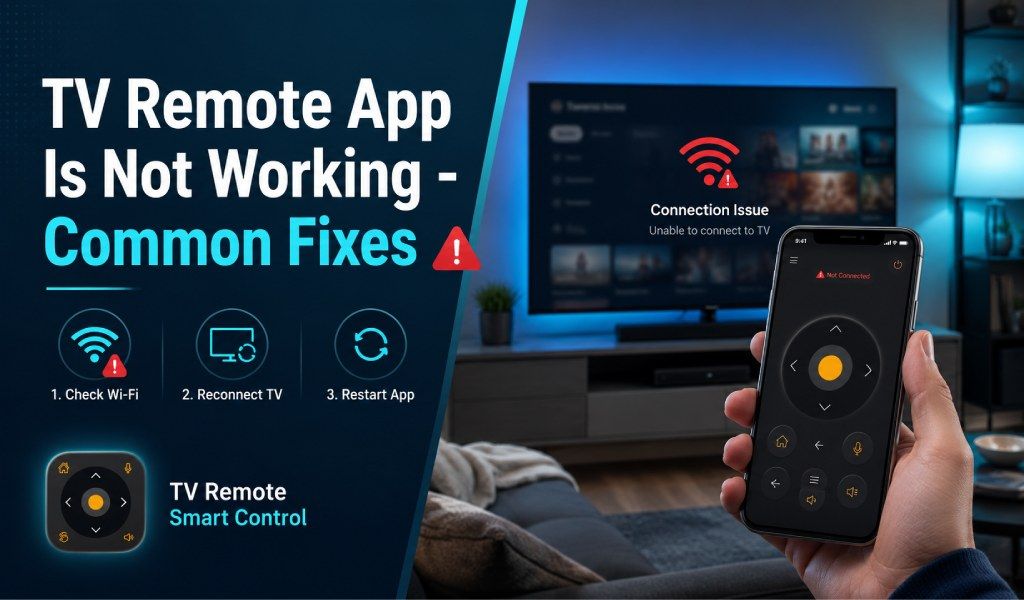
A TV remote app may stop working due to issues with the Wi-Fi connection, IR hardware limitations, permission restrictions, or device compatibility problems. But most of these issues can be fixed in minutes with the right steps.
If your Universal TV Remote Control App is not connecting or responding properly, this guide will help you identify and resolve common issues.
WiFi Not Detecting Your TV
The universal TV remote control app usually connects to smart TVs via the same WiFi network. So, WiFi detection and connection issues are the most common reasons it fails.
How to fix it?
- Connect Both Devices to the Same WiFi Network: Your phone and TV must be on the exact same network. Even different WiFi bands (2.4 GHz vs 5 GHz) can cause detection problems.
- Restart Your Router/TV/Phone: A quick restart refreshes network discovery and often fixes the issue instantly.
- Enable TV Network Permissions: Some smart TVs block external device control. Enable options such as Network Remote Control or External Device Manager in the TV settings.
- Move Closer to the Router: Weak signals prevent device detection.
This applies to most smart TVs, including Samsung, LG, Sony, and other models.
IR Remote Not Working
If you’re controlling a non-smart TV using infrared (IR), your phone must have a built-in IR blaster. Without it, IR features won’t work.
How to fix it?
- Check if Your Phone Supports IR: Not all Android devices include IR hardware.
- Remove Obstacles Between Phone and TV: IR signals require a direct line of sight.
- Point Your Phone Directly at the TV Sensor: Even a slight angle can disrupt the signal.
- Test Another Remote Profile in the App: Different TV models use different IR codes.
If your phone lacks IR support, use WiFi control instead for smart TVs.
App Not Connecting to TV
Sometimes the app opens but fails to connect to your TV.
How to fix it?
- Update the App to the Latest Version: Updates improve compatibility and fix bugs.
- Restart the App and Clear Cache: Go to phone settings → Apps → Storage → Clear cache.
- Check TV Pairing Requests: Many smart TVs require you to approve connection requests on the screen.
- Disable VPN if Enabled: VPNs can block local network communication.
Installing the latest version from the Google Play Store ensures optimal performance and compatibility.
Permission Issues on Your Phone
Modern Android systems restrict apps from accessing network devices unless the apps have been granted permissions.
Required Permissions Include:
- Location Permission
- Nearby Device Access
- Network Access
- Storage Permission
How to fix it?
- Go to [Settings → Apps → Universal TV Remote Control App].
- Enable all required permissions.
- Restart the app after granting access.
Without proper permissions, your phone cannot detect or communicate with your TV.
Compatibility Problems
Not every phone or TV supports every control method, which may lead to connection failures.
Common Compatibility Issues:
- Older TVs without smart features cannot connect via WiFi.
- Some smart TVs require specific settings to be enabled.
- Certain phone models lack IR hardware.
- Outdated TV firmware may block connections.
How to fix it?
- Update your TV software
- Check your TV model compatibility
- Use WiFi for smart TVs and IR for non-smart TVs
- Try connecting manually if automatic detection fails
The Universal TV Remote Control App supports a wide range of brands and models, but proper setup is essential for the best performance.
Quick Troubleshooting Checklist
Try this quick checklist if your TV remote app still doesn’t work.
✔ Connect phone and TV to the same WiFi
✔ Restart all devices
✔ Grant all app permissions
✔ Check phone IR support (for non-smart TVs)
✔ Update app and TV software
✔ Accept TV pairing requests
✔ Move closer to the router or TV
Final Thoughts
TV remote apps usually fail due to simple connection, permission, or compatibility issues rather than serious technical problems. By ensuring proper WiFi setup, confirming IR support, granting permissions, and checking device compatibility, you can quickly restore full control of your TV.
Once configured correctly, a universal remote app lets you control channels, volume, power, and smart features directly from your phone making traditional remotes unnecessary.
FAQs
Q: Can a TV remote app work without internet connection?
A: Yes, a TV remote app can work without internet if your phone uses an IR blaster to control the TV. However, WiFi-based smart TV control requires an active network connection.
Q: Why does my TV remote app keep disconnecting automatically?
A: Frequent disconnections usually happen weak WiFi signals or network interruptions. Moving closer to the router or reconnecting both devices to the network can help stabilize the connection.
Q: Do universal TV remote apps drain phone battery quickly?
A: TV remote apps typically use minimal battery because they rely on short signal transmissions. However, continuous background scanning or casting features may increase battery usage.
Q: Can I control multiple TVs with one remote app?
A: Yes, most universal TV remote apps allow you to connect and manage multiple TVs from one phone. You simply need to pair each device separately within the app.