
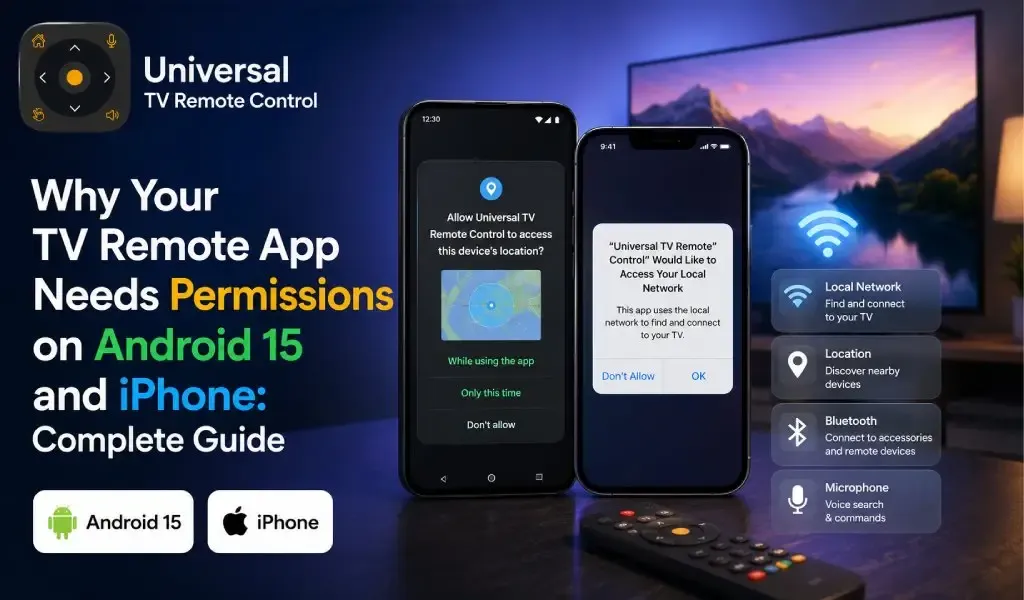
If your TV remote app asks for permission to access your local network, Bluetooth, location, microphone, or notifications, it is not automatically collecting personal data. Most of these permissions exist because modern Android and iPhone security systems require apps to request explicit access before they can discover, connect to, and control smart TVs over WiFi or Bluetooth.
Many users deny these requests without realizing they are essential for pairing with televisions. The result is a remote app that cannot find the TV, refuses to connect, or loses functionality like voice search or keyboard input.
This guide explains every permission your TV remote app may request on Android 15 and iPhone, why each permission exists, which ones are optional, and how to grant or revoke them safely.
Why Do TV Remote Apps Need Permissions?
TV remote apps need permissions because Android and iOS protect access to nearby devices and networks.
Unlike traditional infrared remotes, most modern TV remote apps communicate with televisions over your home WiFi network. Before an app can discover compatible TVs, send commands, or establish a secure connection, the operating system requires permission.
Without these permissions, the app cannot:
• Scan your local network
• Detect compatible smart TVs
• Pair with new televisions
• Maintain reliable communication
• Enable voice commands
• Use Bluetooth when supported
This security model became much stricter over the past few Android and iOS releases, especially on Android 13, Android 14, Android 15, iOS 17, and iOS 18.
Screen Mirroring vs Remote Control App: What's the Difference and Which One Do You Actually Need?
Which Permissions Does a TV Remote App Actually Need?
Most TV remote apps only request permissions required for discovering and controlling compatible televisions.
The exact permissions depend on your phone and TV brand.
Local Network Permission Allows Your Phone to Discover Smart TVs
On iPhone, Local Network permission is usually the most important request.
Without it, the app cannot scan your home network to locate compatible televisions.
If this permission is denied, you may see messages like:
• No devices found
• Unable to connect
• Searching forever
Granting Local Network access does not allow the app to browse your files or internet activity. It only allows communication with devices connected to the same network.
Nearby Devices or Bluetooth Permission Enables Wireless Discovery
Android 12 and newer introduced the Nearby Devices permission.
Some TV brands use Bluetooth during the pairing process before switching to WiFi. Others use Bluetooth for quick discovery.
If denied:
• TV pairing may fail
• Automatic discovery may not work
• Some setup features become unavailable
After pairing, many televisions communicate primarily through WiFi.
Location Permission Is Sometimes Required for WiFi Scanning
Many users wonder why a TV remote app asks for location even though it does not use GPS.
The reason is Android's privacy model.
Earlier Android versions linked WiFi scanning to location because nearby WiFi networks could theoretically estimate a user's location.
Android 15 reduces this dependency in many situations, but some devices and manufacturers still require location permission for network discovery.
The permission is generally used for discovering nearby devices rather than tracking where you are.
Microphone Permission Enables Voice Control
Voice search on compatible smart TVs requires microphone access.
If your TV supports voice commands, the app records only when you actively press the microphone button.
Without microphone permission:
• Voice search will not work
• D Pad navigation, touch controls, and keyboard features continue working normally
Notification Permission Improves Connection Reliability
Android 13 introduced notification permission as an optional request.
Some TV remote apps use notifications for:
• Connection status
• Pairing confirmation
• Background remote service
• Quick reconnect shortcuts
Declining notifications usually does not prevent basic remote functionality.
Camera Permission Is Usually Optional
Some television ecosystems allow QR code pairing.
In these cases, camera access simply scans the code shown on the television.
If your TV supports manual pairing, you may never need this permission.
What Happens If You Deny Permissions?
Denying required permissions usually prevents TV discovery rather than limiting privacy.
Many users assume a permission request is optional, then wonder why the app cannot find their television.
| Permission Denied | Possible Result |
|---|---|
| Local Network | TV never appears |
| Nearby Devices | Pairing fails |
| Bluetooth | Initial setup may fail |
| Location | TV discovery may not work on some Android devices |
| Microphone | Voice control unavailable |
| Camera | QR pairing unavailable |
The good news is that permissions can usually be enabled later without reinstalling the app.
How to Manage Permissions on Android 15
Android 15 lets you grant or revoke each permission individually.
To review permissions:
- Open Settings
- Tap Apps
- Select your TV remote app
- Tap Permissions
- Allow only the permissions you want
For most smart TVs, Local Network related permissions, Nearby Devices, and Bluetooth are the most important.
If voice search is unnecessary, you can leave Microphone disabled.
How to Manage Permissions on iPhone
iPhone provides separate controls for Local Network, Bluetooth, Microphone, and Notifications.
To change permissions:
- Open Settings
- Scroll to your TV remote app
- Tap the app
- Enable or disable individual permissions
The Local Network permission is particularly important because iOS blocks communication with nearby smart devices until the user explicitly approves access.
Are TV Remote Apps Collecting Personal Data?
Most reputable TV remote apps request permissions for device communication rather than personal information.
A permission request alone does not indicate invasive data collection.
Instead, evaluate an app by considering:
The Privacy Policy Explains What Information Is Collected
Established developers publish clear privacy policies describing:
• Data collection
• Analytics
• Crash reporting
• Advertising
• User controls
Reading the privacy policy provides more useful information than judging permissions alone.
The Requested Permissions Should Match the App's Features
A TV remote app offering voice control should request microphone access.
An app supporting QR pairing may request camera access.
An app connecting over WiFi requires Local Network communication.
Permissions should make sense for the advertised functionality.
User Reviews Often Reveal Unusual Behavior
Large numbers of verified users help identify recurring issues.
Apps with millions of downloads typically receive extensive public feedback regarding privacy, stability, and reliability.
Why Modern TV Remote Apps Need More Permissions Than Older Ones
New operating systems require explicit approval for actions that were previously automatic.
Several years ago, many remote apps could discover TVs without asking for multiple permissions.
Today:
• Android isolates Bluetooth access
• Android separates Nearby Devices
• Android limits WiFi discovery
• iOS requires Local Network approval
• Both platforms provide users with greater privacy controls
As a result, developers must request permissions individually instead of receiving automatic access.
This change improves transparency while giving users greater control over connected devices.
Choosing a TV Remote App That Uses Permissions Responsibly
The best TV remote apps explain why each permission is needed and continue working with only necessary access.
When comparing remote apps, consider more than the permission list.
Look for:
• Clear permission explanations
• Regular updates
• Broad TV compatibility
• Reliable customer support
• Transparent privacy practices
• Consistent user experience
One example is Universal TV Remote Control, which supports more than 700 TV brands, is available in 100+ countries, and has been downloaded 130 million+ times across Android and iPhone. Rather than requesting unnecessary permissions, its features align closely with the permissions it requests. For example, Local Network access enables TV discovery, microphone permission powers voice control, and optional keyboard support allows faster text entry on compatible televisions. Additional features such as D Pad navigation, an intuitive interface, and responsive customer support also help reduce setup issues for first time users.
Importantly, the same permission principles apply regardless of which reputable TV remote app you choose. Modern mobile operating systems require these permissions because of platform security, not because remote apps inherently need access to personal information.
Best Practices Before Granting Permissions
Reviewing permissions carefully helps balance privacy and functionality.
Before tapping Allow:
• Download apps from official app stores
• Read the permission explanation
• Check whether the permission matches the advertised feature
• Grant only the permissions you intend to use
• Review permissions periodically in your phone settings
• Keep both your phone and remote app updated
Following these steps provides a good balance between convenience and privacy.
Final Thoughts
Modern TV remote apps depend on operating system permissions to discover, pair with, and control smart TVs securely. Android 15 and the latest versions of iOS place more control in the hands of users by requiring explicit approval for Local Network, Nearby Devices, Bluetooth, Microphone, and other permissions.
If your TV remote app cannot find your television, the problem is often not the app itself but a missing permission that prevents communication with nearby devices.
Understanding why each permission exists allows you to make informed privacy decisions without sacrificing the features that make smartphone based TV control convenient.
Whether you use Samsung, LG, Sony, TCL, Roku TV, Android TV, Fire TV, Google TV, Hisense, Philips, Panasonic, or another compatible television, granting only the necessary permissions is usually all that is required for a secure and reliable remote control experience.
Frequently Asked Questions
1. Why does my TV remote app need Local Network permission?
Local Network permission allows the app to discover and communicate with smart TVs connected to your home WiFi network. Without it, the app usually cannot detect or control your television.
2. Does granting location permission mean the app tracks my location?
Not necessarily. On many Android devices, location permission is tied to WiFi scanning for nearby devices rather than GPS tracking. The exact behavior depends on your Android version and phone manufacturer.
3. Can I use a TV remote app without microphone permission?
Yes. Most remote functions, including navigation, volume control, channel selection, and keyboard input, continue to work. Only voice search and voice commands require microphone access.
4. Why does the app stop finding my TV after an Android or iPhone update?
Major operating system updates sometimes reset or tighten app permissions. Reviewing Local Network, Nearby Devices, Bluetooth, and related permissions often resolves the issue.
5. Is it safe to grant permissions to a TV remote app?
Yes. Install reputable apps from the official Google Play Store or Apple App Store, review their privacy policy, and ensure the requested permissions match the features you intend to use.