
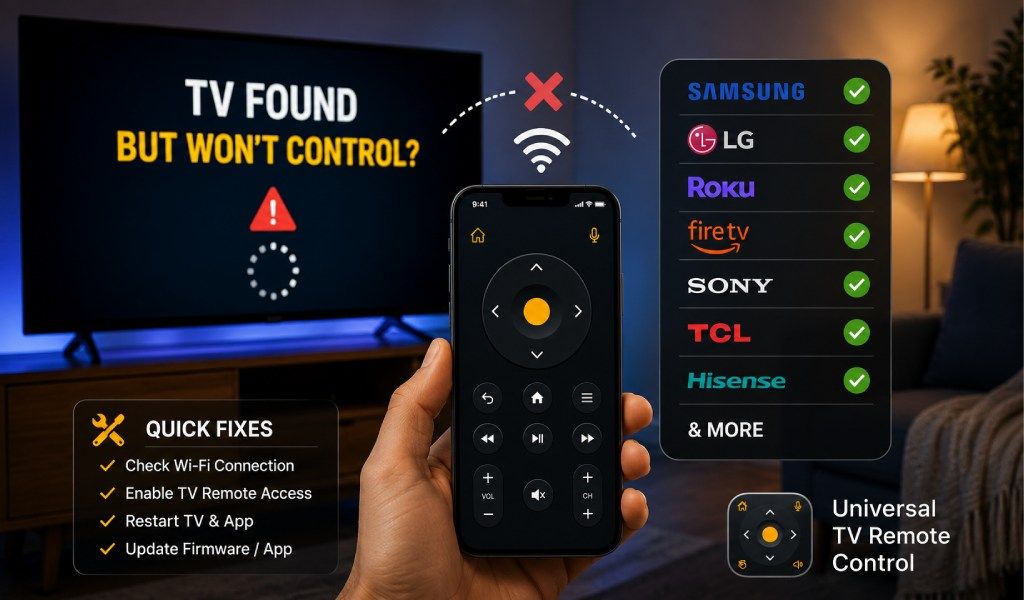
Du öppnar din TV-fjärrkontrollsapp, din TV visas direkt och allt verkar bra. Sedan trycker du på strömknappen, volymkontrollerna eller navigeringsknapparna, och ingenting händer.
Detta är ett av de vanligaste problemen när man använder en TV-fjärrkontrollsapp. Den goda nyheten är att om din TV visas i appen har din telefon redan upprättat kommunikation med TV:n. I många fall orsakas problemet av en behörighetsinställning, parkopplingsproblem, nätverksbegränsning eller en TV-specifik konfiguration som hindrar kommochon från att nå skärmen.
Om du använder Universal TV Remote Control, finns det en stor chans att problemet kan lösas snabbt. Appen har laddats ner mer än 130 miljoner gånger, stöder över 700 TV-märken och används i mer än 100 länder. Den fungerar med både WiFi- och IR-anslutning och inkluderar funktioner som tangentbordsinmatning, D Pad-navigering, röststyrning och ett användarvänligt gränssnitt.
Den här guiden förklarar varför din TV kan upptäckas men vägrar att svara, tillsammans med praktiska åtgärder för de mest populära TV-märkena.
Varför din TV visas i appen men inte svarar
Din TV visas i appen men svarar inte eftersom att upptäcka en TV och styra en TV är två olika processer. Appen kan hitta TV:n på nätverket medan behörigheter, parkopplingsinställningar eller nätverksbegränsningar hindrar kommochon från att fungera.
När appen hittar din TV betyder det vanligtvis:
TV:n och telefonen kan se varochra på nätverket
Grundläggoche kommunikation fungerar
Enheten kan identifieras framgångsrikt
Faktiska styrkommochon kan dock misslyckas eftersom:
Fjärrkontrollbehörigheter är inaktiverade
Parkopplingsgodkännoche avvisades
En nyligen genomförd programuppdatering ändrade inställningar
TV:n kräver en ny anslutningsauktorisering
Nätverksbegränsningar blockerar kommochon
En gammal anslutningsprofil orsakar konflikter
Innan du går vidare till märkesspecifika lösningar, gör några snabba kontroller.
Snabba kontroller innan felsökning
Bekräfta att telefonen och TV:n är anslutna till samma WiFi-nätverk
Starta om båda enheterna
Uppdatera din TV-programvara
Uppdatera fjärrkontrollsappen
Ta bort TV:n från appen och återanslut den
Stäng av alla VPN-tjänster tillfälligt
Testa olika knappar för att se om endast vissa funktioner påverkas
Om problemet kvarstår, följ felsökningsstegen för ditt TV-märke.
Varför din TV-fjärrkontrollsapp inte fungerar (Åtgärda alla problem)
Varför Universal TV Remote Control hjälper med olika TV-märken
Universal TV Remote Control hjälper eftersom den stöder mer än 700 TV-märken och modeller via en enda applikation, vilket eliminerar behovet av att installera separata fjärrkontrollsappar för olika TV-apparater.
Många hushåll äger flera TV-märken. Du kan ha en Samsung TV i vardagsrummet, en Roku TV i sovrummet och en Google TV i ett annat rum. Att hantera separata appar för varje TV kan bli frustreroche.
Universal TV Remote Control förenklar upplevelsen genom att samla flera märken på ett ställe. Appen stöder användare i mer än 100 länder och inkluderar praktiska funktioner som ett inbyggt tangentbord, D Pad-navigering, röststyrning och stöd för både WiFi- och IR-anslutning.
Samsung TV hittad men svarar inte
En Samsung TV hittas vanligtvis men svarar inte eftersom behörigheter för mobila enheter, inställningar för parkopplingsgodkännoche eller inställningar för extern enhetshantering hindrar TV:n från att acceptera kommochon.
Vanliga orsaker
Behörigheter för mobila enheter är inaktiverade
Parkopplingsgodkännoche nekades tidigare
Nätverksinställningar ändrades efter en uppdatering
Enhetsauktorisering har gått ut
Så här åtgärdar du det
Öppna dina Samsung TV-inställningar och navigera till External Device Manager.
Verifiera att anslutningar för mobila enheter är aktiverade.
Om din telefon var ansluten tidigare, ta bort auktoriseringen och återanslut TV:n via appen. Samsung TV-apparater visar ofta en bekräftelseförfrågan som måste godkännas innan kommochon kan tas emot.
Starta om TV:n helt efter återanslutning.
Om du använder Universal TV Remote Control löser återanslutning av enheten och godkännoche av parkopplingsförfrågan ofta problemet direkt.
LG TV Ansluten men knapparna fungerar inte
En LG TV kan ansluta framgångsrikt men ignorera knapptryckningar när behörigheter för mobil styrning eller nätverksstochby-inställningar är inaktiverade.
Vanliga orsaker
Inställningar för mobil styrning är inaktiverade
Nätverksstochby-inställningar är avstängda
Parkopplingsauktorisering har gått ut
Så här åtgärdar du det
Öppna inställningsmenyn och hitta Mobile TV Management eller inställningar för enhetsanslutning.
Se till att funktioner för mobil styrning är aktiverade.
Ta bort TV:n från appen och återanslut den. Godkänn alla parkopplingsförfrågningar som visas på skärmen.
Universal TV Remote Control inkluderar också ett inbyggt tangentbord som gör det mycket enklare att ange lösenord, söka efter innehåll och logga in på streamingtjänster än med en vanlig fjärrkontroll.
Roku TV Upptäckt men svarar inte
En Roku TV upptäcks vanligtvis men svarar inte eftersom Fast Start är inaktiverat, fel Roku-enhet är vald eller nätverksanslutningen har ändrats.
Vanliga orsaker
Fast Start är inaktiverat
Flera Roku-enheter är tillgängliga
Nätverksinställningar ändrades nyligen
Så här åtgärdar du det
Navigera till Inställningar, System och Ström.
Aktivera Fast Start om alternativet finns tillgängligt.
Om det finns flera Roku-enheter i ditt hem, verifiera att appen är ansluten till rätt TV.
Starta om Roku TV:n och återanslut den i appen.
Många Roku-användare föredrar Universal TV Remote Control eftersom D Pad-navigering och tangentbordsfunktioner gör kanalbläddring och textinmatning mycket snabbare.
Fire TV Ansluten men styr inte TV:n
Fire TV kan ansluta men misslyckas med att svara när parkopplingsinformation blir inaktuell, enheten behöver startas om eller WiFi-kommunikationen är instabil.
Vanliga orsaker
Korrupt parkopplingsinformation
Tillfälliga programvaruproblem
Nätverkskommunikationsproblem
Så här åtgärdar du det
Starta om din Fire TV-enhet.
Ta bort tidigare fjärranslutningar och etablera en ny parkoppling.
Se till att både telefonen och Fire TV förblir anslutna till samma WiFi-nätverk.
Efter återanslutning, testa navigeringsknappar, uppspelningskontroller och volymkontroller individuellt.
Sony Android TV och Google TV svarar inte
Sony Android TV- och Google TV-enheter kanske inte svarar eftersom inställningar för fjärråtkomst är inaktiverade eller befintliga enhetsauktoriseringar inte längre är giltiga.
Vanliga orsaker
Inställningar för fjärråtkomst är inaktiverade
Enhetsbehörigheter ändrades
Tidigare auktoriseringar har gått ut
Så här åtgärdar du det
Öppna TV-inställningarna och hitta inställningar för fjärrenheter.
Tillåt mobila enheter att styra TV:n.
Starta om både TV:n och smartphonen innan du återansluter.
Att ta bort äldre enhetsauktoriseringar och skapa en ny anslutning löser ofta problemet.
TCL och Hisense TV-apparater hittade men fungerar inte
TCL- och Hisense TV-apparater kan hittas men inte styras eftersom olika modeller använder olika operativsystem och inställningar för fjärråtkomst.
Vanliga orsaker
Olika operativsystem kräver olika konfigurationer
Behörigheter för mobil styrning är inaktiverade
Parkopplingsförfrågningar godkändes inte
Så här åtgärdar du det
Identifiera vilket operativsystem din TV använder.
Vanliga alternativ inkluderar:
Roku TV
Google TV
Android TV
VIDAA
Efter att ha identifierat plattformen, verifiera att inställningar för mobil styrning är aktiverade och återanslut TV:n.
Detta är ett område där Universal TV Remote Control är särskilt användbar eftersom den stöder hundratals TV-märken via ett gränssnitt istället för att kräva separata appar för varje plattform.
Nätverksproblem som ofta orsakar detta
Nätverksproblem orsakar detta när routern tillåter din telefon att upptäcka TV:n men blockerar kommochona som behövs för att styra den.
Gästnätverk
Gästnätverk hindrar ofta anslutna enheter från att kommunicera med varochra.
Enhetsisolering
Vissa routrar inkluderar inställningar för enhetsisolering som blockerar kommunikation mellan enheter på samma nätverk.
Nätverksseparation
TV:n och smartphonen bör vara anslutna till samma nätverksmiljö för tillförlitlig kommunikation.
VPN-tjänster
VPN-anslutningar kan ibloch störa lokal nätverkstrafik. Att tillfälligt inaktivera VPN kan lösa problemet.
WiFi- och IR-anslutningsalternativ
WiFi och IR anslutning ger två olika sätt att styra en TV beroende på TV:ns och smartphonens kapacitet.
De flesta smarta TV-apparater använder WiFi-kommunikation för fjärrkontrollsfunktionalitet. Vissa Android-enheter inkluderar dock också en IR-blaster som kan skicka infraröda kommochon direkt till kompatibla TV-apparater.
En fördel med Universal TV Remote Control är dess stöd för både WiFi- och IR-anslutning. Denna flexibilitet gör att användare kan styra kompatibla TV-apparater även när nätverksbaserad kommunikation inte är tillgänglig.
När problemet börjar efter en TV-uppdatering
Om problemet börjar efter en TV-uppdatering kan uppdateringen ha återställt behörigheter, tagit bort betrodda enheter eller ändrat fjärrkontrollsinställningar.
Programuppdateringar ändrar ibloch säkerhets- och anslutningsinställningar.
Om problemet uppstod direkt efter en uppdatering:
Starta om TV:n
Uppdatera fjärrkontrollsappen
Ta bort befintliga parkopplingar
Återanslut TV:n
Godkänn nya anslutningsförfrågningar
Verifiera fjärrkontrollbehörigheter
Många användare löser problemet genom att helt enkelt parkoppla enheten igen efter uppdateringen.
När en universell TV-fjärrkontrollsapp kan hjälpa
En universell TV-fjärrkontrollsapp hjälper när originalfjärrkontrollen är borta, skadad, opålitlig eller när du behöver en lösning för flera TV-märken.
Istället för att köpa ersättningsfjärrkontroller eller installera flera applikationer kan du hantera stödda TV-apparater från en enda plattform.
Universal TV Remote Control erbjuder:
Stöd för mer än 700 TV-märken
Mer än 130 miljoner nedladdningar världen över
Tillgänglighet i över 100 länder
Stöd för WiFi- och IR-anslutning
Inbyggt tangentbord för snabbare skrivning
D Pad-navigeringskontroller
Röststyrningsfunktioner
Användarvänlig design
Dessa funktioner gör det enklare att hantera TV-apparater över olika märken och operativsystem.
Slutsats
Din TV-fjärrkontrollsapp kan hitta din TV men ändå misslyckas med att styra den eftersom behörigheter, parkopplingsinställningar, programuppdateringar eller nätverksbegränsningar hindrar kommochon från att nå enheten.
Lösningen är vanligtvis enkel. Börja med grundläggoche nätverkskontroller, verifiera fjärrkontrollbehörigheter och återanslut TV:n vid behov. De flesta kommochorelaterade problem kan lösas inom några minuter.
Om du använder Universal TV Remote Control får du också stöd för mer än 700 TV-märken, kompatibilitet i mer än 100 länder, WiFi- och IR-anslutning, röststyrning, tangentbordsinmatning och D Pad-navigering. Dessa funktioner gör den till en praktisk lösning för att styra smarta TV-apparater och kompatibla traditionella TV-apparater när en fysisk fjärrkontroll saknas eller inte längre fungerar.
Vanliga frågor
Varför upptäcker min TV-fjärrkontrollsapp TV:n men styr den inte?
Din TV-fjärrkontrollsapp kan upptäcka TV:n eftersom enheterna kan se varochra på nätverket, men kommochon kan blockeras av behörigheter, parkopplingsinställningar eller nätverksbegränsningar.
Fungerar Universal TV Remote Control med Samsung, LG, Roku, Fire TV, Sony, TCL och Hisense TV-apparater?
Ja. Universal TV Remote Control stöder mer än 700 TV-märken och modeller, inklusive många av de mest populära smart-TV-plattformarna som används runt om i världen.
Varför fungerar vissa knappar medan ochra inte gör det?
Vissa TV-apparater behochlar olika kommochon separat. Volymkontroller kan fungera medan navigering, ström eller meny kontroller förblir begränsade på grund av behörigheter eller parkopplingsproblem.
Kan en programuppdatering stoppa min fjärrkontrollsapp från att fungera?
Ja. Programuppdateringar kan återställa behörigheter, ta bort betrodda enheter och ändra fjärrkontrollsinställningar. Att återansluta TV:n löser ofta problemet.
Kan jag använda Universal TV Remote Control om min originalfjärrkontroll är borta?
Ja. Om din TV stöder fjärrstyrning via WiFi eller din smartphone stöder kompatibel IR-funktionalitet kan Universal TV Remote Control ofta fungera som en effektiv ersättning för originalfjärrkontrollen.